One of the questions we commonly receive is what is the best way to use BatchPatch in conjunction with a WSUS server?
First, let me say that we *DO* recommend using BatchPatch in conjunction with WSUS. However, it is *NOT* a requirement since BatchPatch will work beautifully without WSUS, but since WSUS is free and extremely simple to setup, there’s little reason to not have it. You can typically get WSUS installed and running in only 30 minutes. If you aren’t familiar with WSUS, I would encourage you to install it on a spare VM. It requires very little processing power, though at a minimum you’ll want to allocate a 20GB data partition to it to store all of the updates. Download it for free from Microsoft: http://technet.microsoft.com/en-us/windowsserver/bb332157.aspx
A few advantages to using a WSUS server
- Reduced bandwidth consumption: Your WSUS server will download updates from Microsoft, and then your clients will download updates from your WSUS server. Without WSUS, your clients would all directly retrieve updates from Microsoft.
- Easily approve or decline which updates will be seen by client machines: You can have WSUS automatically approve updates for you, but if there’s a specific update you want to make sure your machines don’t get, it’s easy to simply decline it.
- Reporting: WSUS will give you some basic reporting functionality
Our recommended approach to using BatchPatch with WSUS
- Use Group Policy to have your client machines automatically download updates from the WSUS:
- Create/edit a group policy that is linked to the OU containing your computers
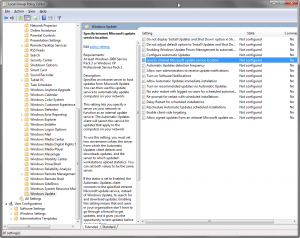
- In Group Policy editor (gpedit.msc) go to Computer Configuration > Administrative Templates > Windows Components > Windows Update and make sure to enable the Specify intranet Microsoft update service location setting with your WSUS server as the target
- In the same location, set the Automatic Updates detection frequency to an interval of 1 hour, which will ensure that your machines retrieve updates soon after they are available
- In the same location, set the Configure Automatic Updates setting to 3 = (Default setting) Download the updates automatically and notify when they are ready to be installed
![GroupPolicyEditor_WindowsUpdate]()
- When your maintenance windows begins, use BatchPatch Actions > Windows Updates > Install downloaded updates, which will tell your client machines to install updates that they have already downloaded. They will not reach out to your WSUS unless you instead select BatchPatch Actions > Windows Updates > Download and install updates. However, the whole purpose of using group policy setting number “3″ (specified above) is to have your machines download available updates before your maintenance window begins. This way when you are actually ready to install updates on your machines, you can minimize the total time the process takes by having the updates already downloaded. Of course you are welcome to use BatchPatch to initiate the download portion if that’s your preference, but for maximum time savings, we like to have the clients pre-download any available updates. This will also prevent any potential bottlenecks on the WSUS server.